Showing posts with label digital learning. Show all posts

4 Knockout Ideas for Distance Learning

 4 Knockout Ideas for Distance Learning


Distance learning can at times feel like you were put in a blender without the top on. Just because we are distanced from our students doesn’t mean we have to feel so mixed up. Take a few pointers for the 4 knockout ideas for distance learning so you don’t feel the pressure, so much!


Keep it Simple


Remain organized and keep everything simple. It really is the key to successful distance learning. Use the same lesson plan template each week. This helps to make sure students know what to expect each week. Pick a day for grammar. Be clear what the goals are each week. Be clear with due dates. Do not lower your expectations, but make them clear. If students do not turn their cameras on in virtual meetings, then make it clear from the beginning that is an expectation. Make sure students know how they are being graded and what to expect in terms of grading. How often is your gradebook updated? Do you provide feedback on all assignments? Where should they find the feedback? (I am a big fan of Google Docs comments and Kaizena if you are looking to share your voice!) 


Stay Connected


Being connected to your students is more important than ever. Showing students that you care, you are invested in their learning, and you want them to succeed is of utmost importance during distance learning. Take time to get to know them. Do the icebreaker activities and make students feel a part of the community. You can also use a website to promote and  to display student work. You need to continue to show pride in what they are accomplishing, so they do too! (Google sites are really easy to use!) You may even have a student help you maintain the website giving opportunities to students who want to do more. 


Also, make connection with families a priority. Yes, it is time consuming, but when distanced, it is even more important for families to be in the communication loop. Social emotional health is a serious issue during distance learning and being in contact with families will avoid seeing students that are often overachievers becoming slackers. Families need to know how their children are doing to be a part of the support system. There are great resources out there like Remind that allow you to stay connected without giving out your phone number! Decide what works best for you and stay connected!


Keep it Light


Distance learning should have high expectations, but when we’re in in-person class there are so many times that you go off on tangents, or play games, or even watch movies. Don’t forget all of that just because we are distanced. Do play games.  One of my favorites is Scattergories. You can easily find lists online and choose a letter! Play with words and have some fun! You can easily share game sites like Kahoot or Quizizz in synchronous time by sharing your screen.


Also, keep up with the motivation! Continue to do rewards. Even distanced, extrinsic motivation matters.


 Here are a few ideas: 

  • Play games!

  • Watch a movie together

  • Second chance on an assignment

  •  Drop lowest grade

  • Choose a recipe the teacher makes in a synchronous meeting. (Even more interesting if you’re not a great cook or a student gets to give you directions!)

  • Choose a dance the  teacher has to do synchronously. (TikTok dances are huge right now).


The possibilities are endless. Be creative. Ask the students what they want. Let them earn the rewards and not just grades.  Grades are not motivators for many students and our ultimate goal is to help our students become lifelong learners, not just pass a specific grade.


Use All the Tools


Lastly, use all of your resources.<strong>Use the technology and use your colleagues! Reach out to your technology department. Share successes and failures with others in your department or on your team. Stay in communication with guidance counselors and administrators. Find your support team within your school and utilize it. No one should have to jump into distance learning alone.  


When distanced, your world is upside down.
 Don’t let it bog you down. Get creative and use the 4 knockout ideas for distance learning here.  Be flexible and reflective and distance learning could be one of your best years yet!


3 Ways to Use Classroom Libraries with COVID Concerns

3 Ways to Use Classroom Libraries with COVID Concerns


Independent reading is a huge part of English classrooms. With COVID 19 lurking, English teachers need to make some changes to using their classroom libraries. Don’t worry though, with these simple steps, independent reading and book choice can absolutely continue in your classroom!  


Here are 3 ways to continue to use your classroom library with COVID concerns.


Digital Checkout System

Scholars love to peruse our books, touch them, read the back, flip through to see how many chapters, or to read a few pages to evaluate their interest. This feels like a big downfall with COVID, as we don’t want our students touching the books and returning them for someone else to touch. However, there is always a solution!  You can use a digital checkout system. There are some great ones for organizing classroom libraries and many of them are free! 


  •  Booksource or Libib are great choices. Even better, take the time to inventory your library in one of these systems and use it forever! It may take time in the beginning if your library is large, but totally worth it in the end. 

  • If you know you don’t have the time to set up something like a digital inventory, use Google Slides to introduce a few books at a time. You can have an image, a few pages, and the back cover! This sounds like a great project for students to do too! Can we say book reviews? Our students would be so proud if you were to reuse their work as a classroom library preview! 

  • Another option is using Google forms for check out. If a student wants to check out a book, have them fill out the form and then you can document check out, check in, and everything in between. Simple and effective. 

  • If you're going for simple, have students search titles and descriptions of books in your library on the Internet and that could still be touchless without any of the work on your end!


72 Hour Rule


Now that you have options for check out, let’s talk safety. When a child takes a book home during this pandemic, you may shudder by the thought of it being returned. However, COVID-19 is being studied in multiple settings and reports are claiming that the virus does not continue to live on paper or books after 72 hours. This is great news for classroom libraries. Here are some more ways to keep the library safe for everyone:


  •  Use clear contact paper for your covers so when it is returned the student simply wipes down the cover with a disinfectant wipe. Then it must go into quarantine before the next student can use it. Lysol and other sprays are not recommended, but you can also wipe down the book with a disinfecting wipe.

  • When a book is returned, have the student place it in a specific box for quarantine. You will need a few plastic boxes or you can even use ziplock bags! Mark the date on the plastic with a post-it or an expo marker! 

  • Make your procedures for checking in books clear and make check in days only on Mondays. This helps especially if you do First Chapter Friday, because the books could potentially stay in quarantine for a week making them even safer. If you always choose Monday, the time in quarantine is documented in a very organized way.


Go Digital


If you still feel uneasy about continuing to use your classroom library, there is always the option to go digital.


  • Check out digital library sites like getEpic.com, which has tons to choose from.

  • Find the tons of free PDFs online that are easily accessible. This is especially true for the classics.

  • Lastly, most libraries allow you to borrow ebooks. It may take a lesson or two, but students could easily keep reading your favorites from the safety of their personal devices. 


Safety is obviously number one priority, but students need to be reading. Some libraries remain closed and our students continue to see us as the experts on what they should be reading. (Of course, because we are!) Keep the recommendations coming and keep the books flowing.  Keep using your classroom library with COVID concerns, but do it with precaution and preparation!. COVID has changed our lives, but literacy lives on!


Flipgrid, Edpuzzle, Screencastify, Oh My!

                                            Flipgrid, Edpuzzle, Screencastify, Oh My!


Technology is fascinating and teachers are always trying to find the latest and greatest. Well, you’ve come to the right place!  Flipgrid, Edpuzzle, and Screencastify are three of the best tools for all ages of learners and easily accessible by teachers and students alike! Check out all of the details on these great tech platforms!


Flipgrid


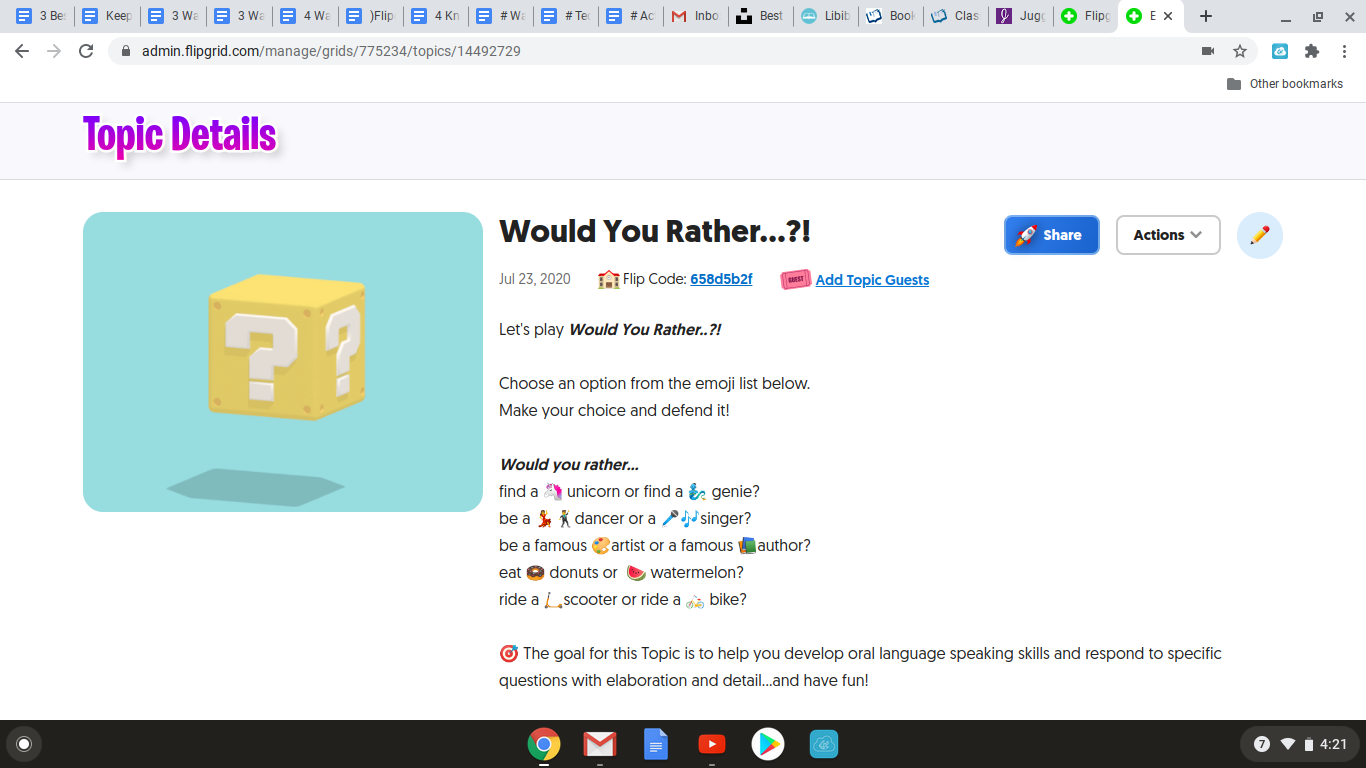
Looking for something original for your students? Flipgrid is totally the way to go. This platform allows students to respond in various prompts by using short videos of themselves. They can trim them, add stickers, and even take a selfie to use as the cover shot. The process is super simple and easy to follow. 


A few more tips to get started:

  • Your classes are called “grids” and students are given a code to join!

  •  When you post a topic, you control all aspects. 

  • There are various filters, you control student responses to one another and you can even preview videos before they post to your class. 

  • You can even link outside sources to your topics and students can do the same if they need support for what they are discussing!

  • You can check out the “Disco Library” for premade prompts to share with your class. 


Here are a few ideas on ways to use Flipgrid in your class!


  1. Build student portfolios. Allow students to reflect on their work by explaining what they have learned through the process. What a valuable tool!

  2. Reteaching! Mastery happens when you can teach someone else. Allow students an option of creating a video teaching a concept to prove they understand it fully!

  3. Guest Speakers! You can invite authors or really any valuable speaker to join and have conversations with your students through Flipgrid!

  4. Vocabulary work! Students record videos for their classmates defining new vocabulary words. This packs a punch in the learning department.

  5. Exit tickets get a brand new look! What a great way to reflect on what students have learned by using videos

  6. Speaking standards are definitely covered by using this tool!

  7. Icebreakers! What better way to meet your students! One of the classics is would you rather questions and you can find them in the library of resources already created!

  8.  Book Reviews! Check out the blog post: WAYS TO USE FLIPGRID TO SHOWCASE BOOKS to read even more about how to do this on Flipgrid!

Edpuzzle


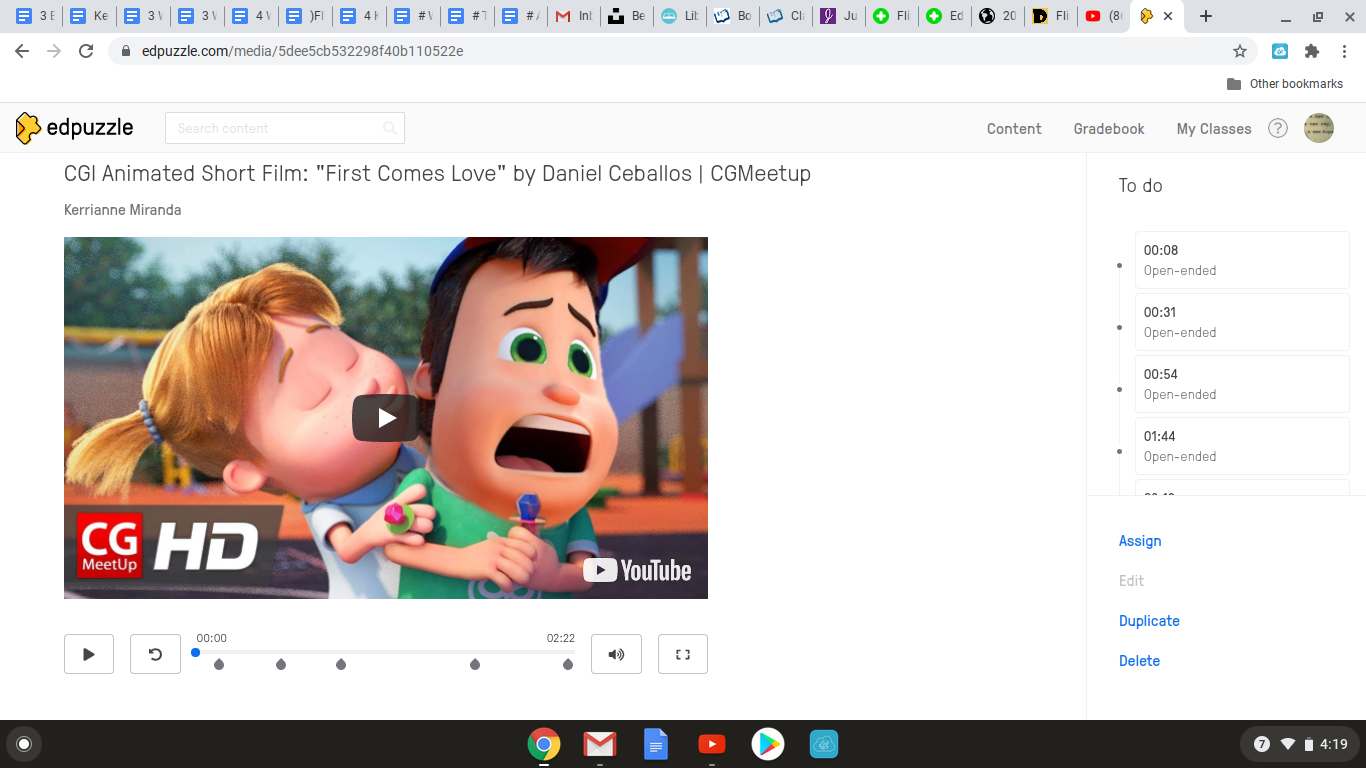
Edpuzzle.com is this exceptional tool that uses YouTube videos, Ted Talks,  Khan Academy, and your very own videos to teach all of your standards! The best part of Edpuzzle is the customized questions. There are editing tools that allow you to add the questions wherever you want students to stop and think and they are absolutely required for the student to move on. You can make multiple choice or short answer. There is also the option to copy videos from other Edpuzzle users (your own school included). You can copy videos with questions or without, but don’t worry if the questions don’t fit what you need, you can just edit them in your copy of the video!


Here are few of my favorite ways to use Edpuzzle:

  1. Teaching plot elements, or characterization with short animated videos. Think Pixar shorts or short CGI films! Check out, “Don’t Croak” by Daun Kim or “First Comes Love” by Daniel Ceballos for all of your plot needs! 

  2. Use music mashups to teach poetic elements. There are a bunch of already created YouTube videos to choose from!

  3. Edpuzzle videos are also great for substitute plans and engaging for the students too!

  4. Instructional videos created by me as a resource they can rewatch over and over again!


Edpuzzle takes the art of using videos to teach to the next level with the ability to use questions, edit and cut videos and there is even an option for voiceover. Check it out at: Edpuzzle


Screencastify


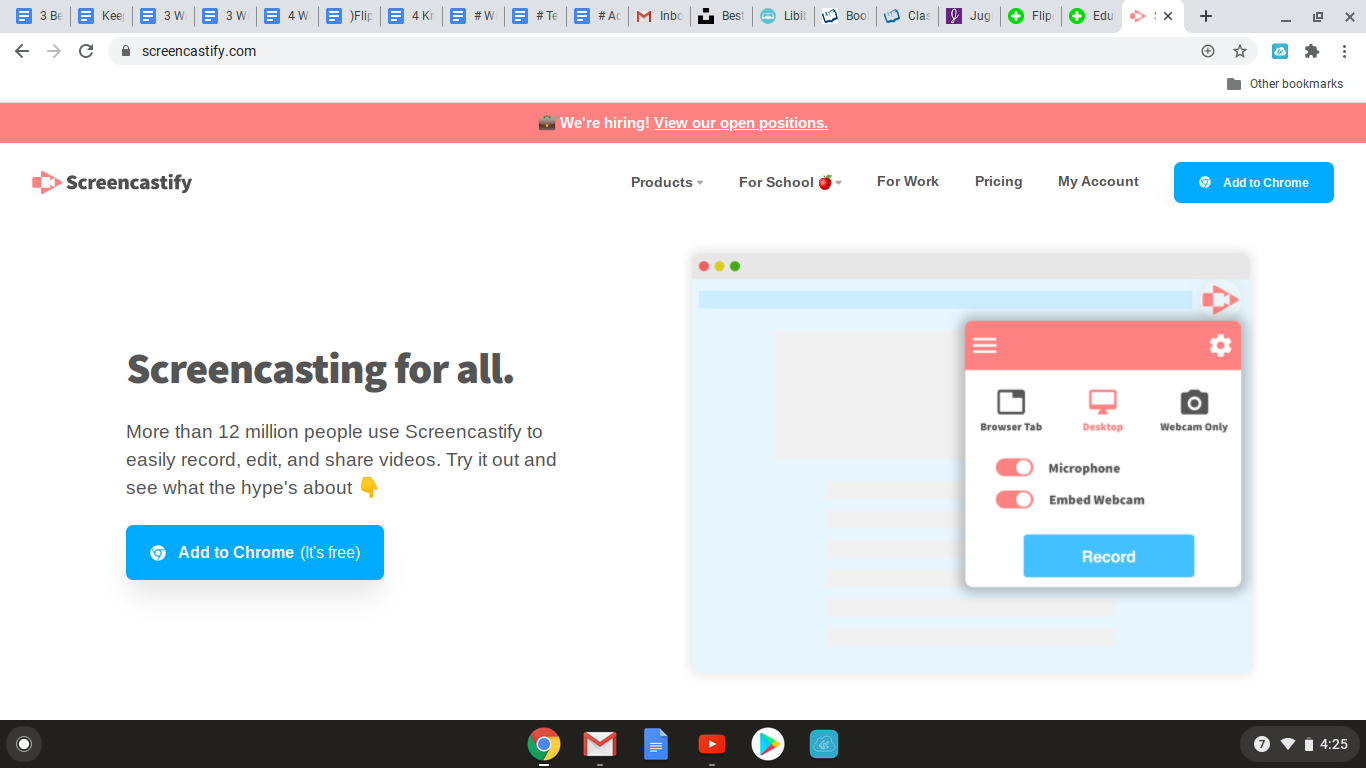
Oh my, this one is a staple in my teaching as well. Screencastify is a simple to use video recording tool. It simply records your screen as you are talking. Google Slides works well for this, but you can show anything on your screen! You can opt to use the camera option and you will appear on the screen as you talk through your lesson. The free version does limit how many minutes you have, but the paid version is completely unlimited. 


If you have ever thought about any of the following, you need screencastify:


  • Have you ever thought about flipping your classroom? You will need screencastify. These can be the instructional videos students watch at home to work the next day.

  • If you ever wanted to use instructional videos for students to work in stations with, screencastify is your new best friend. 

  • Ever wanted your own YouTube channel of resources? Use screencastify to create them!

  • Have a  substitute in the room, but want your students to hear your lesson? Screencastify it is!

  • If you want to use  Edpuzzle,  but with your own videos, you can screencastify and upload then upload them into Edpuzzle and add your custom questions!


The possibilities are endless with
Flipgrid, Edpuzzle and Screencastify. Using them all together in your teaching will put you at the top of your game and make our students excited about learning. Oh my!


ClassTag Versus Remind: Which online Communication Tool is Right For You?


ClassTag Versus Remind: Which online Communication Tool is Right For You?

Regardless of what your school district decides in terms of face-to-face instruction or online instruction it is imperative to have a communication tool at your fingertips. A tool that allows for interactive and engaging communication beyond email, school newsletters, automated messages, to name a few.  The ability to have a communication option in one handy dandy tool is a teacher lifesaver not to mention time saver!

Remind, formerly Remind101 has been the go-to for many educators but coming on the scene fast and furiously is ClassTag. Which communication tool best suits your communication needs? Let’s break it down.

Tag You’re It!
            ClassTag is an all in one solution for your communication needs. From messaging to announcements, teacher conference sign-ups, newsletters, supply lists, and more, ClassTag facilitates interaction and engagement between teachers and students, teachers and parents, teachers and teachers, students to teachers, parents to teachers...you get the point, it’s an all directions communication highway! 


Remind me
            Remind has been around since 2011 when it was formerly known as Remind101.  The company changed its name to Remind in 2014 and has gained over 20 million users since its introduction! It’s a tool that was built specifically for educational use and is great to connect with students, parents, co-workers and administration.


Let’s compare the two to give you a better idea of which tool will work for you.
Feature
ClassTag
Remind
Messaging options
✔Read receipts of who read your messages

✔Notifications when contact details are out of date

✔Schedule announcements

✔Automatic suggestions to send a note home to hard-to-reach parents

✔ Set Office Hours
✔Read receipts of who read your messages

✔Real-time messaging a class, group, or individual person.

✔Schedule reminders

✔Send messages on the go


✔Set office hours
Calendar Integration
✔ External calendar integration makes it easy to set up reminders, events, and appointments
X
Weekly Newsletters
✔ Set up automatic weekly newsletters
X
Share documents


✔Students get a virtual backpack where teachers and parents can upload docs, videos, pictures, and important information
✔Students can view photos and other files as part of a teacher message.

Free to Use

✔Free to use schoolwide, as a district or as an individual teacher
✔Free for individual teachers up to 10 classes, 150 students per class
**Upgrade option for use district wide or schoolwide
No Character Limits

✔No character limits in messages
✔140 Characters in a text message
Rewards Program

✔Teachers earn free supplies just for engaging with parents!


X
Photo and Video sharing/links


✔Library feature where teachers and students can easily add, view and manage photos, videos, and files uploaded in your class.
✔Teachers can share photos, PDFs, files, and voice clips with your messages.
Works on Any Device


✔Available on all devices including IOS, Android, Laptop, Smartphones, not so smart cell phones, desktops, Tablets.
✔Students and parents can get Remind messages on any phone that can receive text messages, including prepaid phones, flip phones, and government-provided phones.
Help Center Support
Language Translation
✔Translate into over 60 different languages in real time
✔Translate your messages into more than 85 languages.
Parent Teacher Conferences
✔Parents can sign up for conference slots, volunteer opportunities or donations in one click


X
App Integrations
✔Google Classroom, Drive, YouTube, Calendar, AND Meets for easier management?
Integrates with google classroom

Access and share your favorite resources from Google, Microsoft OneDrive, and more—without leaving Remind.

Supply Lists and Donations
✔Post your class list to the community, and get essential supplies for the new year


✔Add volunteer requests or donation requests to any event
X
Private and Secu
re
✔FERPA Certified through the  iKeepSafe Privacy Program
✔Awarded the iKeepSafe COPPA Safe Harbor Seal.


Other features of Remind
●       Easily download message documentation for home-school or virtual communication.
●       Add a teacher to your account for co-teaching.

Other Benefits of ClassTag

●     Automatically convert a teacher’s message into either email or text message depending on the parents preferred method of contact. 
●     ClassTag sends automatic follow-ups and reminders for events and key dates

Regardless of your choice, both ClassTag and Remind will make communication a breeze between teachers and parents and foster a classroom community into either email or text message depending on the parents' preferred method of contact. 
●     ClassTag sends automatic follow-ups and reminders for events and key dates

Regardless of your choice, both ClassTag and Remind will make communication a breeze between teachers and parents and foster a classroom community.


Join my newsletter and get a free lesson plan.

Subscribe to get exclusive freebies, learn about sales, and be the first to learn about new content.

We won't send you spam. Unsubscribe at any time. Powered by ConvertKit